On this page
Query Tab Reference
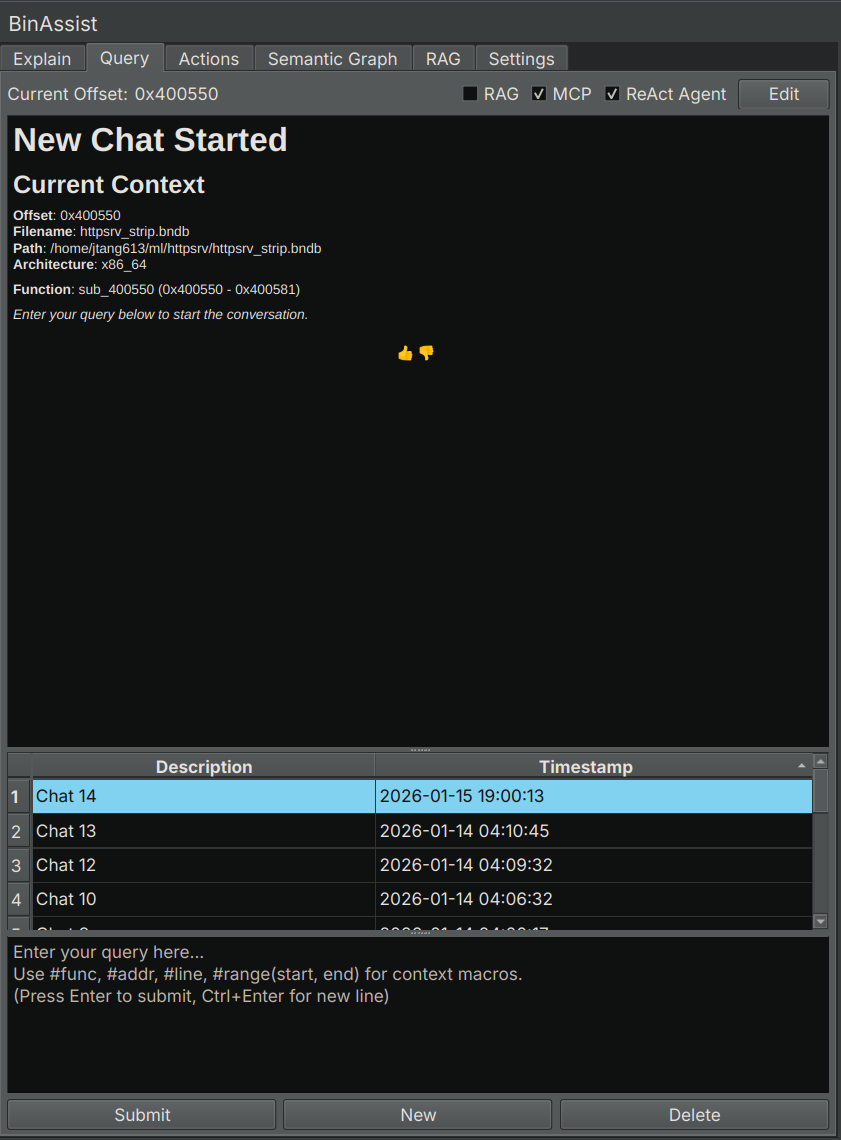
The Query tab provides an interactive chat interface for asking questions about your binary, with support for context macros, MCP tools, and the autonomous ReAct agent.
Purpose
The Query tab enables free-form conversation with the LLM about your binary. Unlike the Explain tab’s structured analysis, Query allows you to:
- Ask any question about the code
- Follow up on previous responses
- Enable autonomous multi-step investigations
- Use context macros to reference specific binary elements
UI Elements
Chat History
The left panel shows your conversation history:
- Each chat is listed with a timestamp
- Click a chat to view its contents
- New: Create a new conversation
- Delete: Remove the selected conversation
Message Display
The central area displays the conversation:
- Your messages appear as user prompts
- LLM responses are rendered as markdown
- Tool calls (when MCP is enabled) show the tool name and result
- Responses stream in real-time
Input Area
At the bottom:
- Text input field for your message
- Send button (or press Enter)
- Stop button (visible during generation)
Enhancement Options
| Option | Description |
|---|---|
| RAG | Include context from indexed documents |
| MCP | Enable tool calling for binary analysis |
| Agentic | Enable the ReAct autonomous agent |
Context Macros
Context macros let you reference specific binary elements in your queries. The macro is replaced with the actual data before sending to the LLM.
| Macro | Description | Example |
|---|---|---|
#func |
Current function’s decompiled code | “What does #func do?” |
#addr |
Data at the current address | “What is stored at #addr?” |
#line |
Current instruction | “Explain #line” |
#range(start, end) |
Data in address range | “Analyze #range(0x1000, 0x1100)” |
Using Context Macros
Simply include the macro in your message:
What vulnerabilities exist in #func?The LLM receives the full decompiled code of the current function along with your question.
MCP Tool Calling
When MCP is enabled, the LLM can call tools from connected MCP servers to gather information:
Common tools include:
- Decompiling functions
- Looking up cross-references
- Navigating to addresses
- Querying the semantic graph
The LLM decides which tools to call based on your question.
ReAct Agent (Agentic Mode)
When Agentic is enabled, BinAssist uses the ReAct (Reasoning + Acting) agent for autonomous multi-step investigations.
How ReAct Works
- Planning: The agent creates an investigation plan based on your question
- Investigation: For each step, the agent calls tools and gathers information
- Reflection: The agent assesses progress and may adapt the plan
- Synthesis: After gathering sufficient information, the agent provides a comprehensive answer
When to Use ReAct
ReAct is ideal for:
- Complex questions requiring multiple tool calls
- Exploratory analysis (“What does this binary do?”)
- Security auditing (“Find vulnerabilities in this code”)
- Tracing data flows across functions
ReAct Progress Display
During a ReAct investigation, you’ll see:
- The investigation plan with checkboxes
- Current step being executed
- Tool calls and their results
- The final synthesized answer
Streaming Responses
All LLM responses stream in real-time, allowing you to:
- See the response as it’s generated
- Stop generation early if the response isn’t useful
- Get faster feedback on simple queries
Edit Mode
Like the Explain tab, you can edit chat messages:
- Toggle edit mode to modify messages
- Save changes to update the conversation
Related Documentation
- Query Workflow - Detailed guide to querying and ReAct
- Settings Tab - Configuring MCP servers
- Semantic Graph Tab - Building context for queries