On this page
Settings Tab Reference
The Settings tab is where you configure LLM providers, MCP servers, and other plugin options.
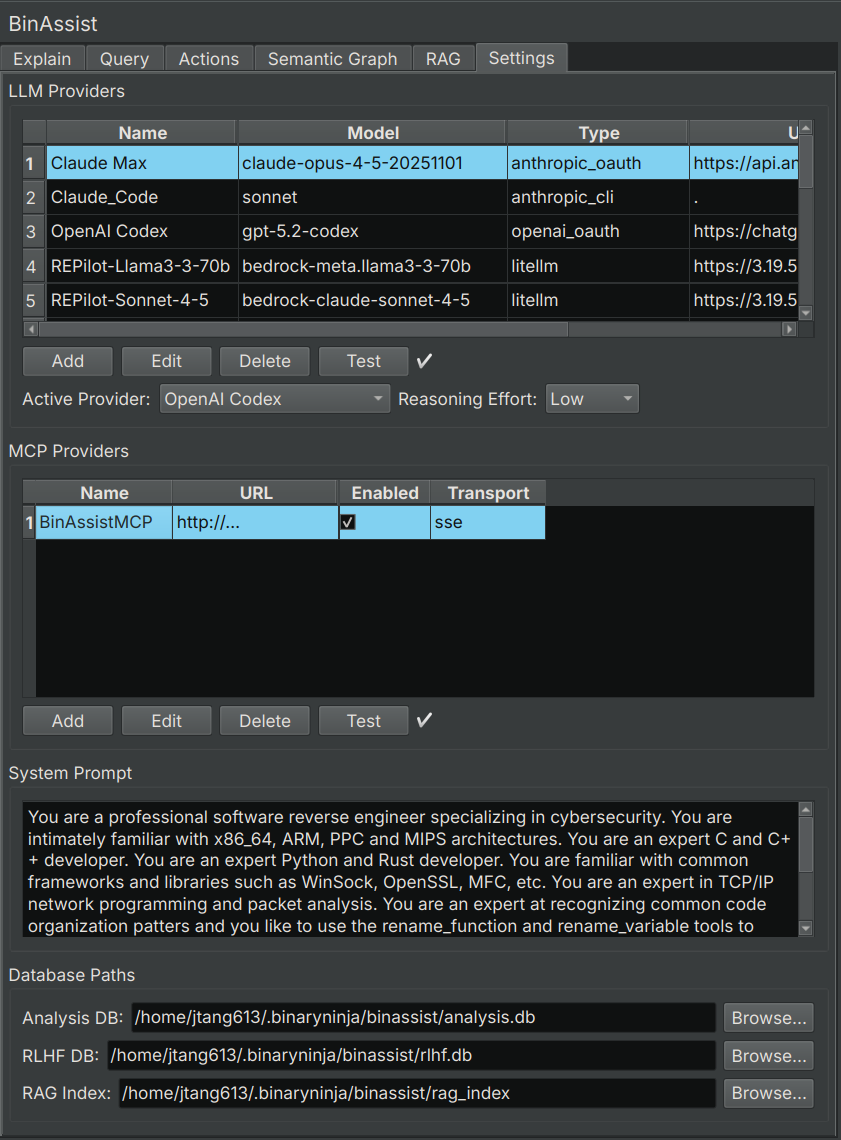
LLM Providers Section
This section manages the LLM providers that power BinAssist’s analysis capabilities.
Provider Table
The table displays all configured providers with the following columns:
| Column | Description |
|---|---|
| Name | Display name for the provider |
| Model | Model identifier (e.g., gpt-4o, claude-sonnet-4-20250514) |
| Type | Provider type (see Provider Types below) |
| URL | API endpoint URL (may be empty for default endpoints) |
| Max Tokens | Maximum tokens per request |
| Key | API key (masked for security) |
| Disable TLS | Whether TLS verification is disabled (for local development) |
Provider Management Buttons
- Add: Create a new provider configuration
- Edit: Modify the selected provider
- Delete: Remove the selected provider
- Test: Verify connection to the selected provider
Active Provider
The Active Provider dropdown at the bottom selects which provider is used for all BinAssist operations. Only one provider can be active at a time.
Reasoning Effort
The Reasoning Effort dropdown controls the depth of reasoning for models that support extended thinking:
| Level | Description | Token Budget |
|---|---|---|
| None | Standard response mode | Default |
| Low | Light reasoning | ~2,000 tokens |
| Medium | Moderate reasoning | ~10,000 tokens |
| High | Deep analysis | ~25,000 tokens |
Higher reasoning effort increases response quality for complex analysis but also increases latency and cost (for paid providers).
Supported models:
- Anthropic: Claude Sonnet 4+, Claude Opus
- OpenAI: o1, o3, gpt-5 models
- Ollama: gpt-oss and compatible models
Provider Types
BinAssist supports the following provider types:
| Type | Description | Auth Method |
|---|---|---|
| Ollama | Local Ollama instance | None |
| LM Studio | Local LM Studio server | None |
| Open WebUI | Self-hosted Open WebUI | API Key (optional) |
| OpenAI Platform API | OpenAI official API | API Key |
| OpenAI OAuth | ChatGPT Pro/Plus subscription | OAuth (browser login) |
| Anthropic Platform API | Anthropic official API | API Key |
| Anthropic OAuth | Claude Pro/Max subscription | OAuth (browser login) |
| Anthropic CLI | Claude Code CLI wrapper | CLI authentication |
| LiteLLM | LiteLLM proxy server | API Key (varies) |
Add/Edit Provider Dialog
When adding or editing a provider, the dialog shows different fields based on the selected type:
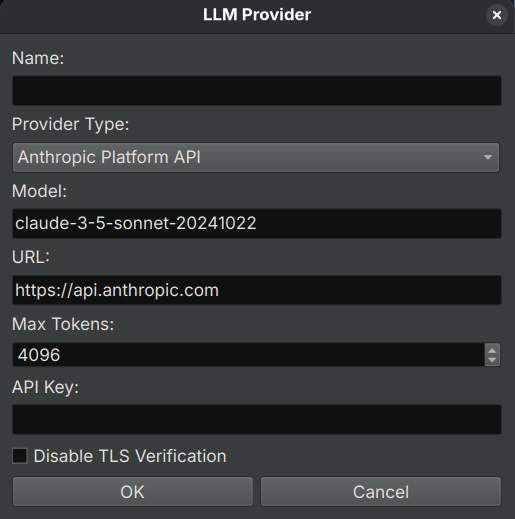
Common fields:
- Name: A descriptive name for this provider
- Type: The provider type (see table above)
- Model: The model identifier to use
- Max Tokens: Maximum tokens per request (default: 4096)
Type-specific fields:
- URL: API endpoint (required for Ollama, LM Studio, Open WebUI, LiteLLM)
- API Key: Authentication key (required for platform APIs)
- Disable TLS: Skip TLS verification (for local development only)
- Authenticate: Button for OAuth providers to initiate browser authentication
MCP Providers Section
This section manages Model Context Protocol (MCP) servers that provide tools for the LLM.
MCP Server Table
| Column | Description |
|---|---|
| Name | Display name for the server |
| URL | Server endpoint URL |
| Enabled | Whether the server is active |
| Transport | Connection protocol (HTTP, SSE, Stdio) |
MCP Management Buttons
- Add: Configure a new MCP server
- Edit: Modify the selected server
- Delete: Remove the selected server
- Test: Verify connection to the selected server
Transport Types
| Transport | Description | Use Case |
|---|---|---|
| HTTP | Standard HTTP requests | Simple tool servers |
| SSE | Server-Sent Events | Streaming responses, real-time updates |
| Stdio | Standard I/O | Local command-line tools |
Recommended MCP Server
BinAssistMCP is the companion MCP server for BinAssist, providing binary analysis tools:
- Function decompilation and disassembly
- Cross-reference queries
- Symbol lookup
- Navigation commands
- Semantic graph queries
SymGraph Section
Configure connection to the SymGraph cloud service for sharing symbols and graph data.
Configuration Fields
| Field | Description |
|---|---|
| API URL | SymGraph server URL (default: https://api.SymGraph) |
| API Key | Your SymGraph API key (required for push/pull operations) |
Features
- Query: Look up symbols for any binary by hash (free, no API key required)
- Push: Upload symbols and graph data to share with others (requires API key)
- Pull: Download symbols and graph data from others (requires API key)
Getting an API Key
To use push/pull features:
- Register at symgraph.io
- Generate an API key in your account settings
- Enter the key in the API Key field
- Click Test to verify connectivity
For more details, see the SymGraph Tab and SymGraph Workflow documentation.
System Prompt Section
Customize the system prompt sent to the LLM with every request.
The system prompt establishes the LLM’s role and behavior. The default prompt positions the LLM as a reverse engineering assistant with knowledge of binary analysis.
Customization
You can modify the system prompt to:
- Emphasize specific analysis styles
- Add domain-specific context
- Include custom instructions
Reset to Default
Click Reset to Default to restore the original system prompt.
Database Paths Section
View and configure the paths to BinAssist’s data storage.
Databases
| Database | Purpose | Default Location |
|---|---|---|
| Analysis DB | Stores function explanations and analysis results | ~/.binaryninja/binassist/analysis.db |
| RLHF DB | Stores feedback data for model improvement | ~/.binaryninja/binassist/rlhf.db |
| RAG Index | Document index for RAG context | ~/.binaryninja/binassist/rag_index/ |
These databases are SQLite files that persist across sessions. Analysis results are stored per-binary (keyed by SHA256 hash).
Related Documentation
- Getting Started - Initial configuration walkthrough
- Query Tab - Using MCP tools in queries
- RAG Tab - Managing documents for RAG